
Hi.
Recently, Sony went full evil corporation and announced the end of physical media in their platform, just in time for my monthly backup routine. That was the incentive I need to backup my games to my external HDD, along my regular personal/work data.
This tutorial will be focused on Steam, but a tutorial fo GOG is on the works too.
Why backup Steam Games?
There are twp great reasons to backup your games:
- limited storage on your PC
external storage, like USB-sticks and external hard drives, is cheaper than upgrading your PC and more versatile - skip download time
bigger games will take a long time to be downloaded, specially on bad internet connections, backups skip this pass entirely
Limitations
Steam Backups are not the same as the good old Physical Media, do not expect them to serve the same purpose or you will be disappointed.
To even make a backup, you need to satisfy those conditions:
- Have Steam installed
- Have the game installed
The backup feature works for any game in your library, but it makes less sense for live-service games (because of frequent updates). The process of restoring a game from backup has this conditions:
- Have Steam installed
- Be logged into your account
- Have the game in your library
It's possible to share a copy of your backup with friends, but if they do not have the game on their own accounts it will be useless. If something bad happens to your account - like when a former Sweet Baby Inc employee tried to take down Kabrutus Steam account - the backups become worthless. As you may already concluded, by extensions this also eliminates second-hand market. This is why the backups are not the same as games in physical media.
Isn't a big irony of fate that Steam backups work so similarly to the on-disk DRM that made the Xbox One lose the console wars?
Backup
The first thing is choosing the game you want to backup. In my case it will be a classic, the original MDK from 1995!
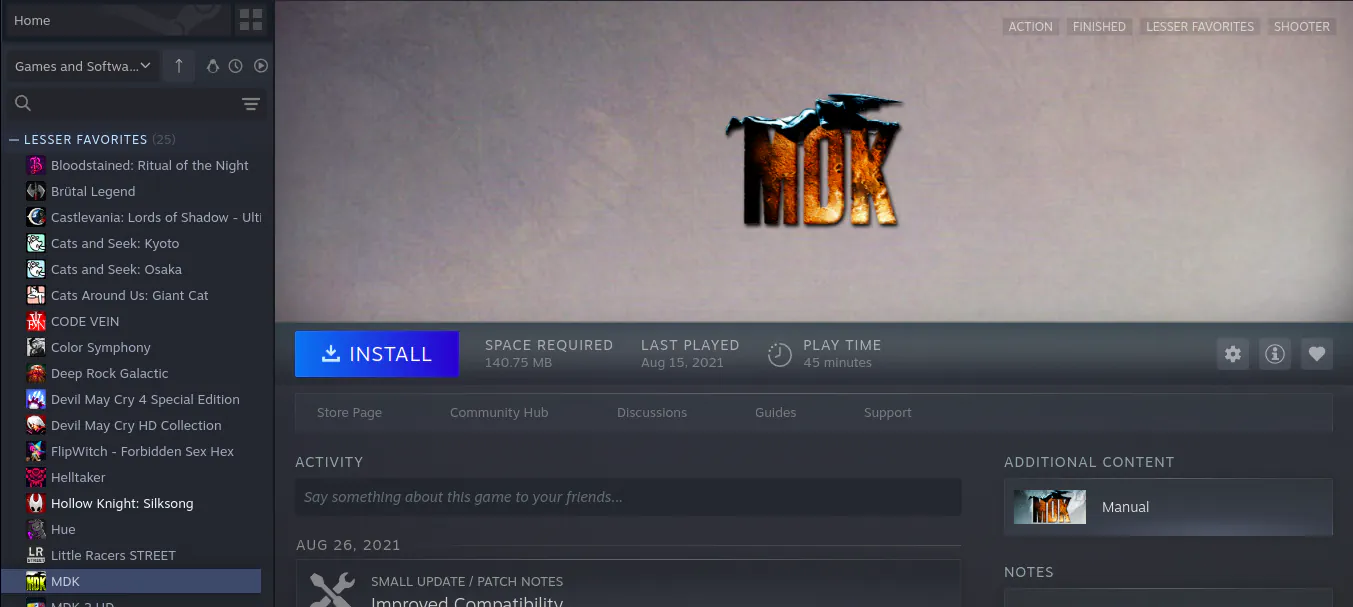
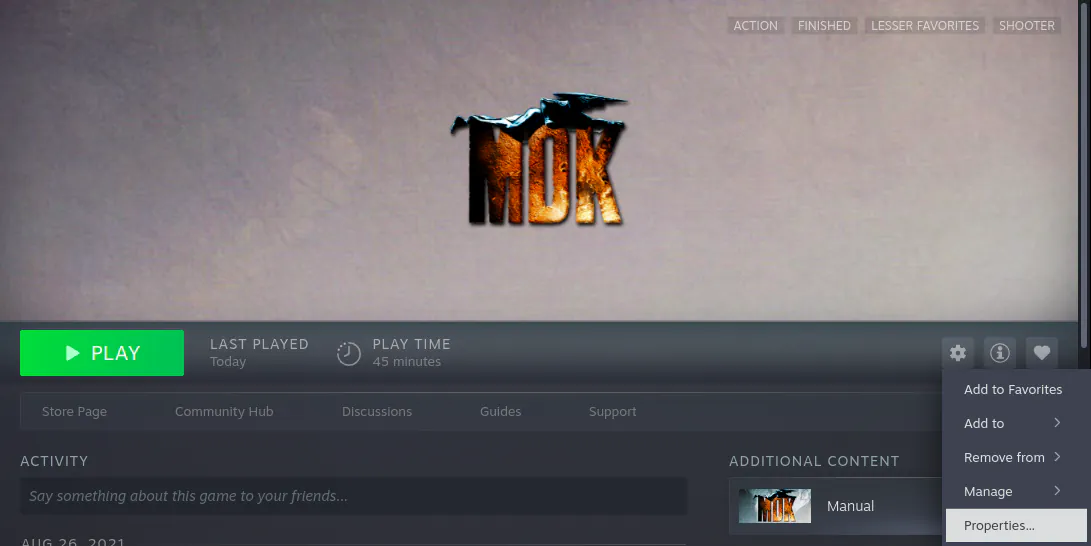
Since we are already on the game page, the first thing to do is going to the game Properties window, which you can do by clicking the gear icon and on the "Properties..." option on it's menu.
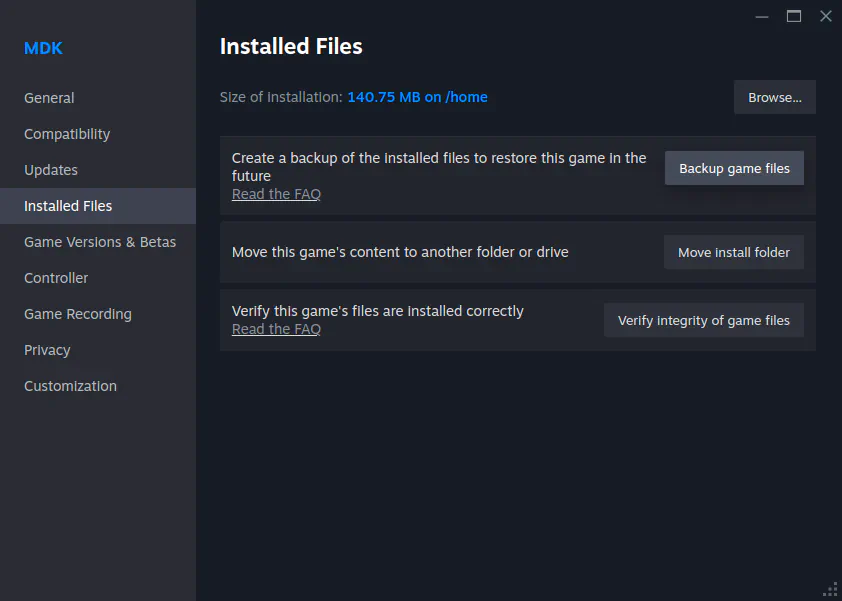
On Properties window, go for the "Installed Files" tab and click on the "Backup Game Files" button.
This will open the "Backup Game Files" window, where you need to click in the "Browse..." button and chose the path where files will be saved.
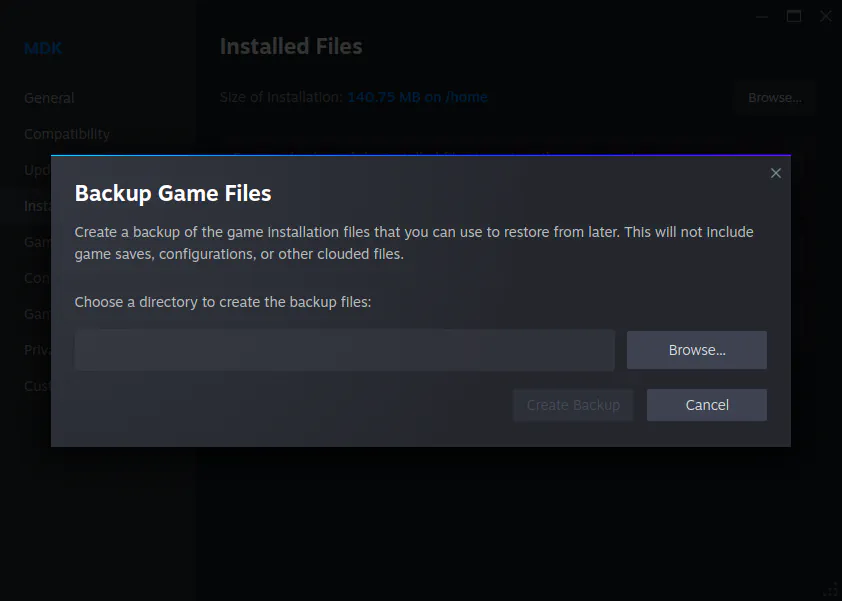
After choosing the save path, click on "Create Backup" to begin the process.
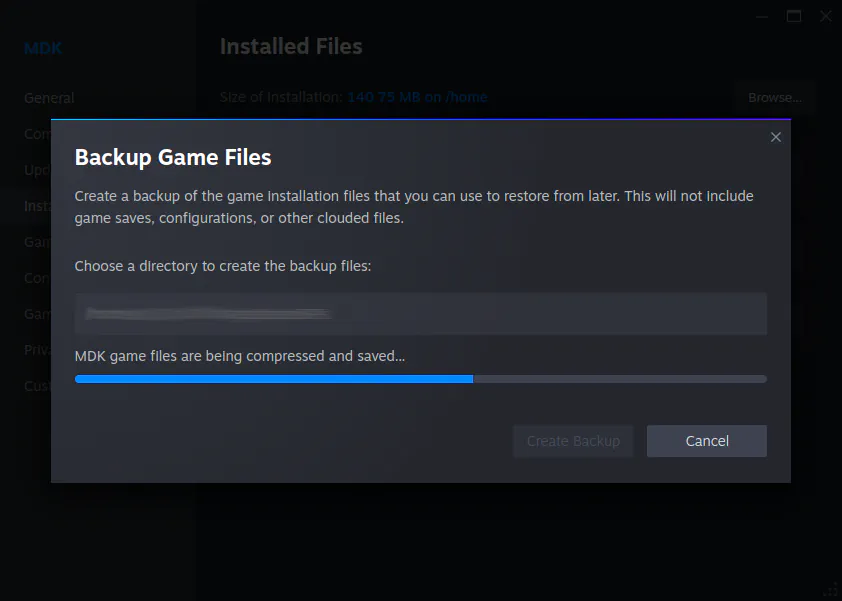
This will take some time and put pressure on your processor, because the files are also being compacted while copied, so avoid doing any heavy activities (like playing games) at the same time.
A folder with all the compacted files will be created at the path you chose before. After the backup is complete, you can close the "Backup Game Files" window and copy the folder anywhere you want - preferably external devices.
Tip: Compressing the backup folder to a single.ziportar.gzfile will not result in significant reduction of storage space, so only do it if you really want it to be a single file.
Restore
Let's say we uninstalled MDK after beating the game, now some time has passed and we want to play it again.
It's time to restore the backup, which you do by going on the "Restore Game Backup..." option on the Steam menu:
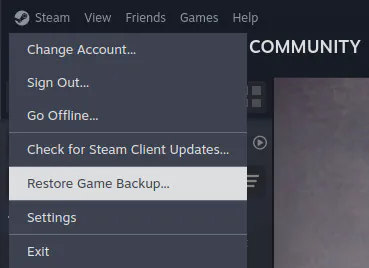
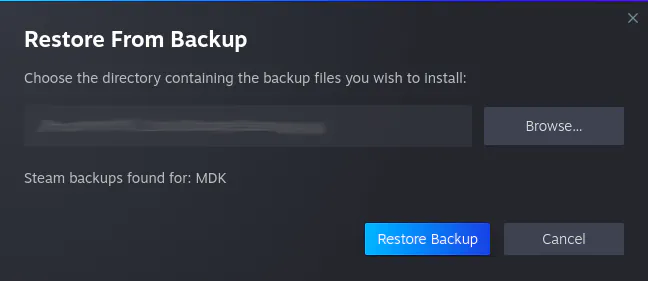
This will open the "Restore From Backup" window, where you must click on "Browse..." to set the path where the backup Folder is stored.
If you compressed the Backup Folder to a .ziportar.gzfile, you will need to extract it first.
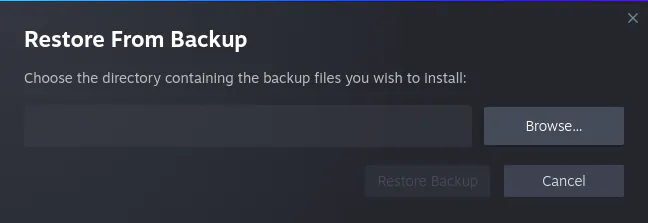
After setting the path, you click on the "Restore Backup" button.
This will bring us to the very familiar "Install" window, where you chose where you want to install the game and click on the "Install" button.
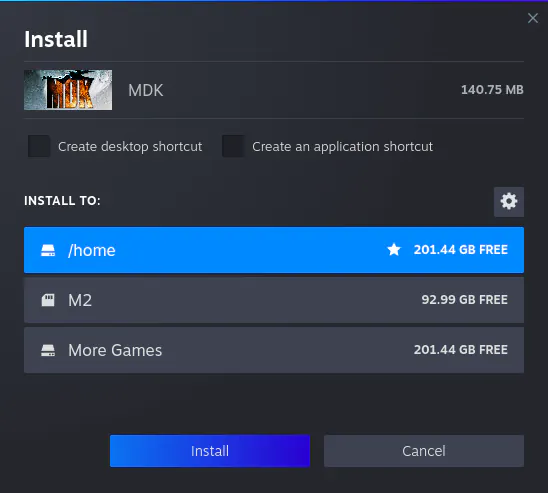
The only big difference is that the game files will be copied from our Backup Folder instead of being downloaded from Valve servers - which will be A LOT faster.
Conclusion
While not a real form of Digital Ownership, since Steam Backups keep you inside Valve's walled garden, creating backups for your games still a useful process that makes you less dependent on in-device storage space and internet connection. Set your expectations correctly and it may benefit you.
An option that provides true Digital Ownership will be in my tutorial for GOG. But that is a topic for another day, so see you on the next one.